
A lot of customers struggle with managing their emails – the filing, deleting, archiving in particular. So I thought a blog about email housekeeping might be helpful.
Where To Start
I would start by asking yourself a few questions…

Email Housekeeping: What Is Important To Keep?
We have a lot of customers who keep every email received, but they wouldn’t do this with snail mail post put through their letter box. The minute they go to the door they make decisions about what to bin, what to put to one side, what to open immediately. Why not do the same with your email? Decide what to bin, what to keep for later and what to open immediately.

Do You Need A Filing System?
I know of no-one who receives their snail mail post and just puts it on an ever-growing pile in the corner of their hall in date order! Yet I know of lots of people who do the just this with email. Maybe it’s time to stop just leaving emails in your Inbox – instead start filing and binning..
Do You Need To Keep BOTH The Email Received AND The Reply Sent Back?
In my experience the majority of people file the original email but not the reply, yet the reply is often equally important. Also, if you just file the reply you will normally have both the reply AND the original email. One quick click and drag to the right folder will give you both. If it’s an email chain then all you need to do is file the latest reply you sent and normally you will have ALL the emails sent previously, whether that is 2 emails or 20.

Is Speed Your Issue? Or is Quantity?
If you are finding it takes too long to search for an email, find an email, etc, then you may find that filing old emails offline will help.
If you receive too many emails in a day to manage then you may find that setting up rules help.
How To Do Your Email Housekeeping
Create Folders
Imagine that the emails you have received are letters. What would you do with them? How would you file them in a big metal filing cabinet? Alphabetically? By product? By type? By date? How would it be easiest to find them?
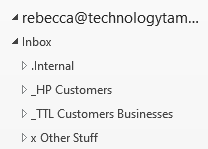
Then go to your Inbox and create the appropriate Folders. Exactly how you do this varies with your mail provider but normally you can right click on Inbox and select Create Folder.
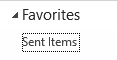
Move Sent Items To Your Favorites
This just makes it quicker to view Sent items so you can file them. Again, how you do this varies with your mail provider but normally you just need to locate your Sent Items folder and drag it into Favorites.
Email Housekeeping is Easier If You File As You Go
When you click on an email decide immediately whether you can delete or file and do it. To file, just click and drag into the folder you created. That said, before you file just ask yourself do you really need to keep it. Do you really, really need to keep email that just says… “Great.” or “Thank you so much.”
When you reply to an email, delete the email received in your Inbox, click on the Sent Items folder in your favourites and click and drag the SENT email to the folder you created for it. Job done in three clicks. Email received and reply sent both filed in one go.

Put Aside For Later
Some people get lots and lots of emails every day and are constantly interrupted. This can make managing emails more challenging. In this case you may find a system that enables you put emails aside for looking at later helps – the electronic equivalent of putting today’s mail on the corner of table. There are various ways to do this – flag your emails, colour code them, create folders such as Reply Later, Read Later, Query. Personally, I prefer the folders system because it makes it easier to visually check what is in my Inbox, but find the method that works best for you.
Archive Your Emails
Most email systems have a way of archiving emails, some better than others. In my experience, however, most people don’t worry about archiving emails unless they have space issues or speed issues. In this case the best solution is to archive emails offline onto your computer. This can be made easier if when you create your folders you include the year – then you can do a yearly archive or deletion. How you download emails really does vary from one client to another. In Outlook many of our customers create local PST files and either file into these as they go or move emails into them in January.

Create Rules That Do The Email Housekeeping For You
Often people receive emails that they don’t need to read immediately and, sometimes don’t need to read at all unless there is a query. In Outlook and most email clients you can create rules that automatically move emails into folders (they can also automatically forward and delete emails too). In Outlook go to File, Manage Rules & Alerts or Settings, All Outlook Settings Rules and follow the prompts.
Rebecca Mansbridge
Director
June 2021