
Enabling multi-factor authentication vastly improves email security. As a result, Microsoft made a decision in 2021 to begin force enabling MFA this year. This is now being rolled out.
“If you purchased your subscription or trial after October 21, 2019, and you’re prompted for MFA when you sign in, security defaults have been automatically enabled for your subscription.”
Microsoft
This is a good thing as it vastly improves email security, but what does it mean in practical terms?
What You Need For Microsoft Multi-factor Authentication
You will need the following:
Your email address
The password for your email address
A mobile phone
The notification that you need to set up multi-factor authentication is likely to happen when you open a web browser on your computer (for example Microsoft Edge, Google Chrome, Apple Safari, Mozilla Firefox) and go to office.com. A window similar to the following will be displayed when you enter your email address and password:
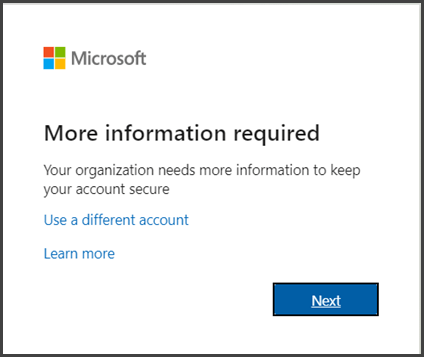
Click Next and a message similar to the following will be displayed:

Enter your phone number in the United Kingdom (+44) field WITHOUT THE 0 at the front. So if your mobile phone number was 07971444555 number it would be entered as follows:

If you have entered a mobile phone number select Send me a code by text message:

Click Next. A message will be displayed confirming Microsoft is sending a verification code to your phone and a text message will have been sent to your phone. Enter the code that has been sent to your phone into the window on the computer, similar to that shown below:

Click Verify and a message similar to the following will be displayed.
Note that if you are using an ‘app’ such as Microsoft Outlook Apple Mail or Microsoft Office you will now need an app password that you will need to use instead of the password you normally use. If you don’t need to do this, just click Finished.

You will be logged into Office 365. Click on Outlook to display your email.